How to add a patient
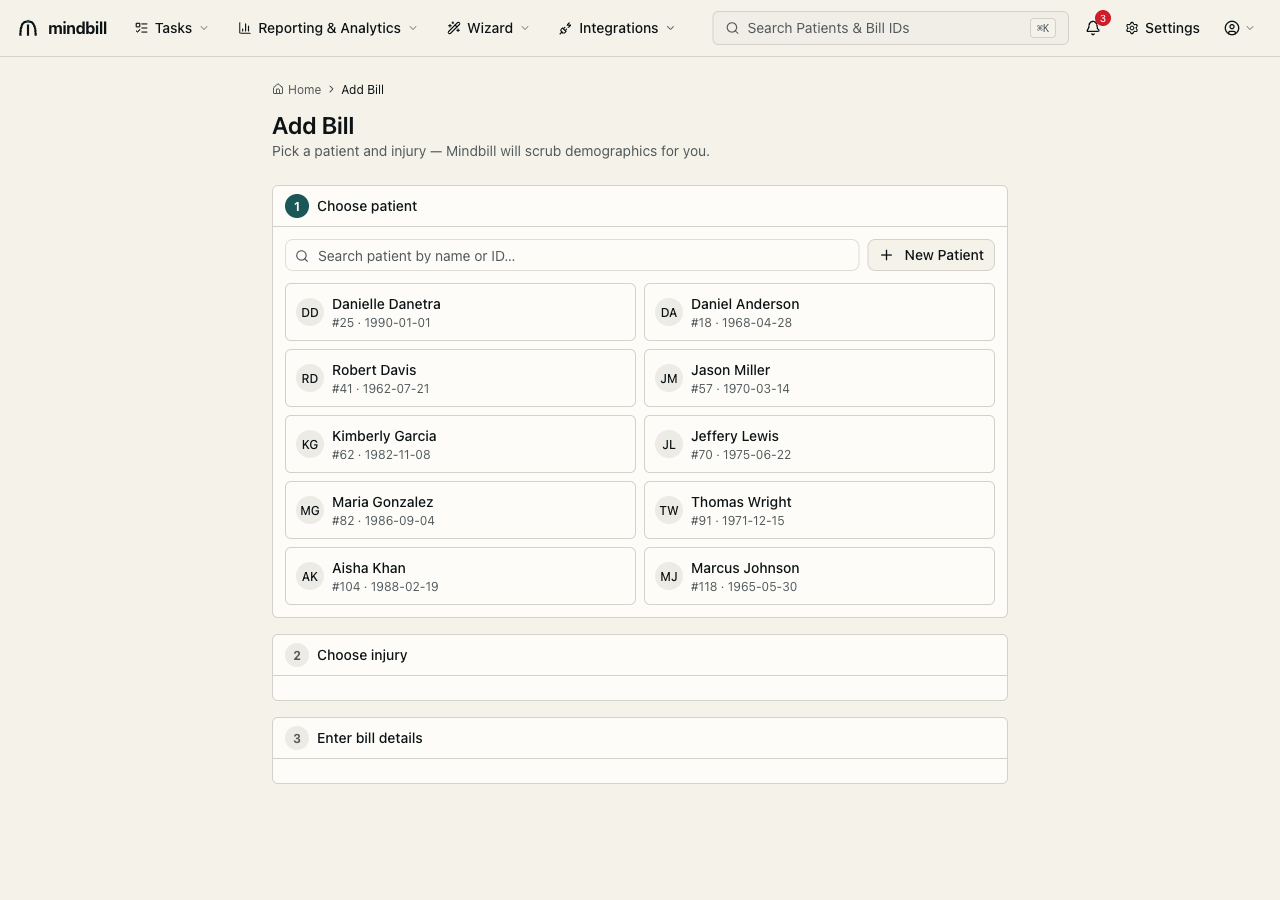
Step 1 — Search first, then Create Patient
Start in Patient Search. Search the name first to avoid creating a duplicate — the directory lists every injured worker with name, patient ID, and date of birth, and filters as you type. If the worker is already on file, click their card to select them. When the worker isn't on file, click Create Patient to open the Add Patient form.
Step 2 — Enter the legal name
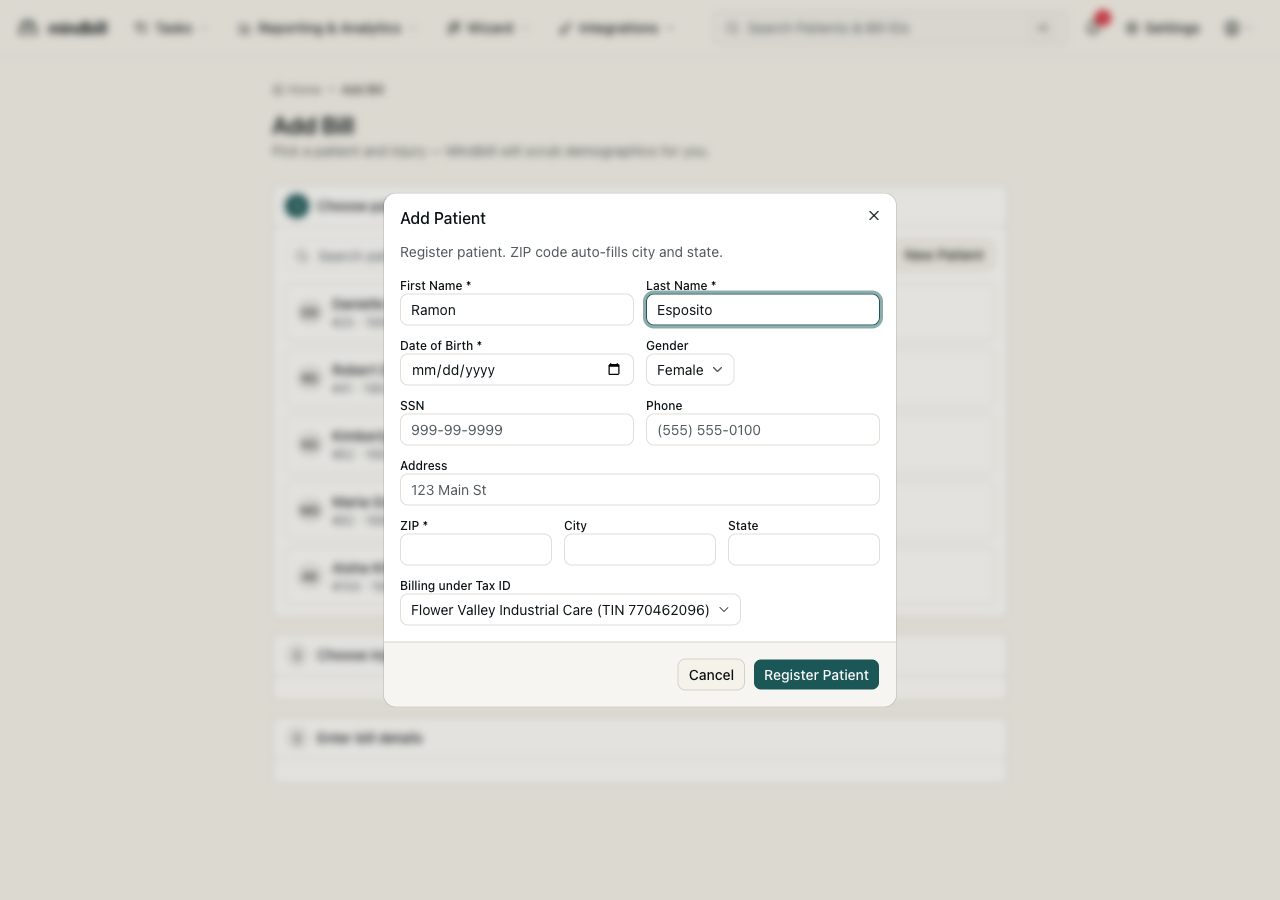
Enter the worker's legal first and last name, exactly as it appears on the claim. The form is tied to the billing entity — note the Payer Tax ID selector, which stamps every future bill for this patient with the correct submitter TIN (here, Spectrum Medical Evaluators, TIN 770462096). Required fields are marked with an asterisk.
Step 3 — Set date of birth and gender
Set the date of birth — it's range-validated as you go, so an impossible date is caught immediately — then pick the gender from Female, Male, or Unknown. These are EDI-relevant fields the scrub validates before every send, so getting them right here means they flow cleanly onto every future bill and X12 envelope.
Step 4 — Add SSN and phone
Add the Social Security number and a phone number; both formats are checked as you type. If you don't have the SSN, leave it blank — Mindbill drops in the standard nine-nines (999-99-9999) unknown placeholder so the bill still validates rather than blocking on a field you can fill later.
Step 5 — Address with ZIP auto-fill
Type the street address, then the ZIP — and Mindbill auto-fills the city and state for you. That auto-fill is the scrub at work: there's no transposed code to trip a 277CA rejection later, because the city/state always match the ZIP you entered.
Step 6 — Register the patient
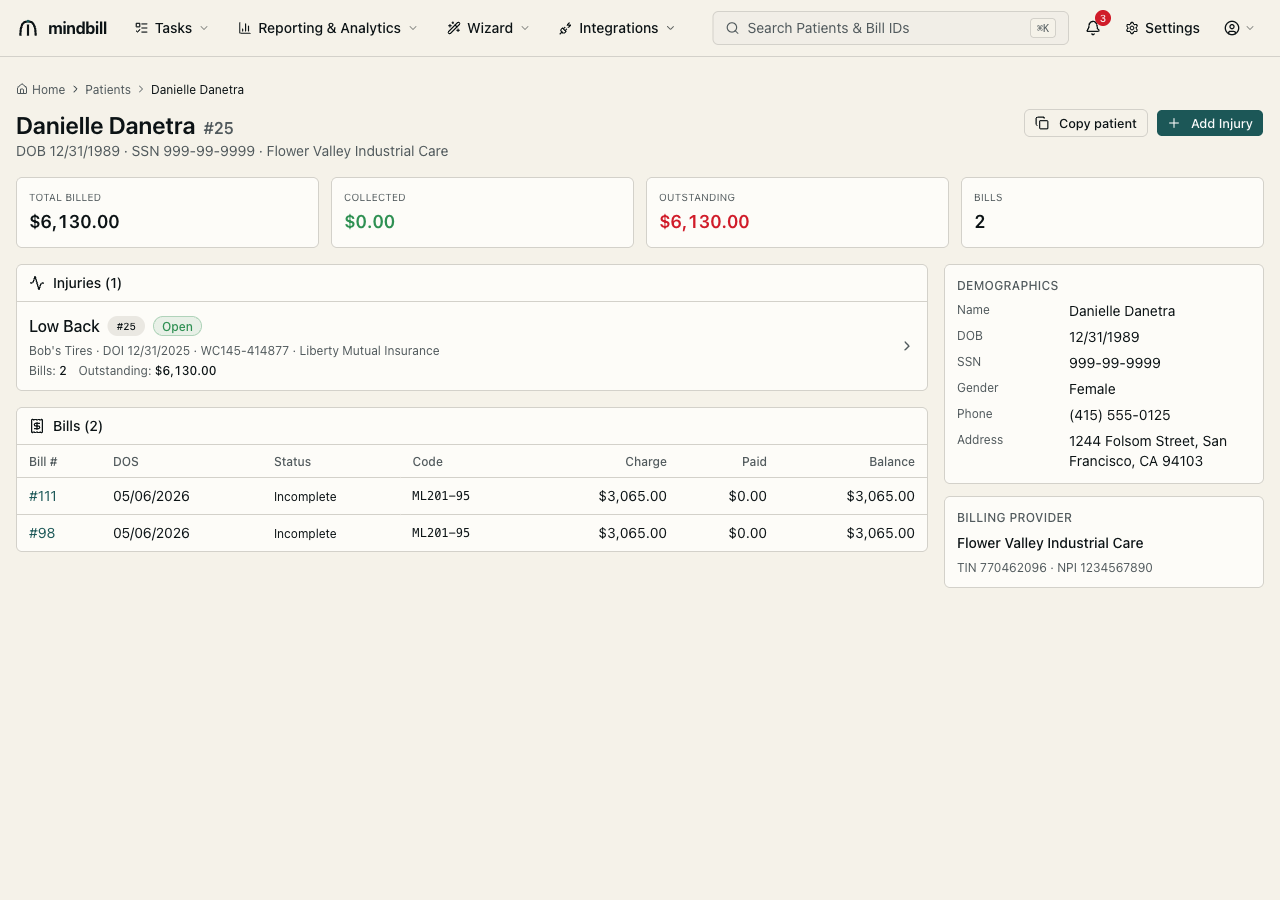
Click Register Patient and the worker is saved. You land straight on the new patient's detail page, with billed, collected, and outstanding totals up top, the injuries on file, and every linked bill — ready to add an injury and start billing. (If you started inside the Add Bill flow, the new patient is selected and you drop into the Choose injury step instead.)