Navigation, breadcrumbs & global search
Step 1 — Start from the home dashboard
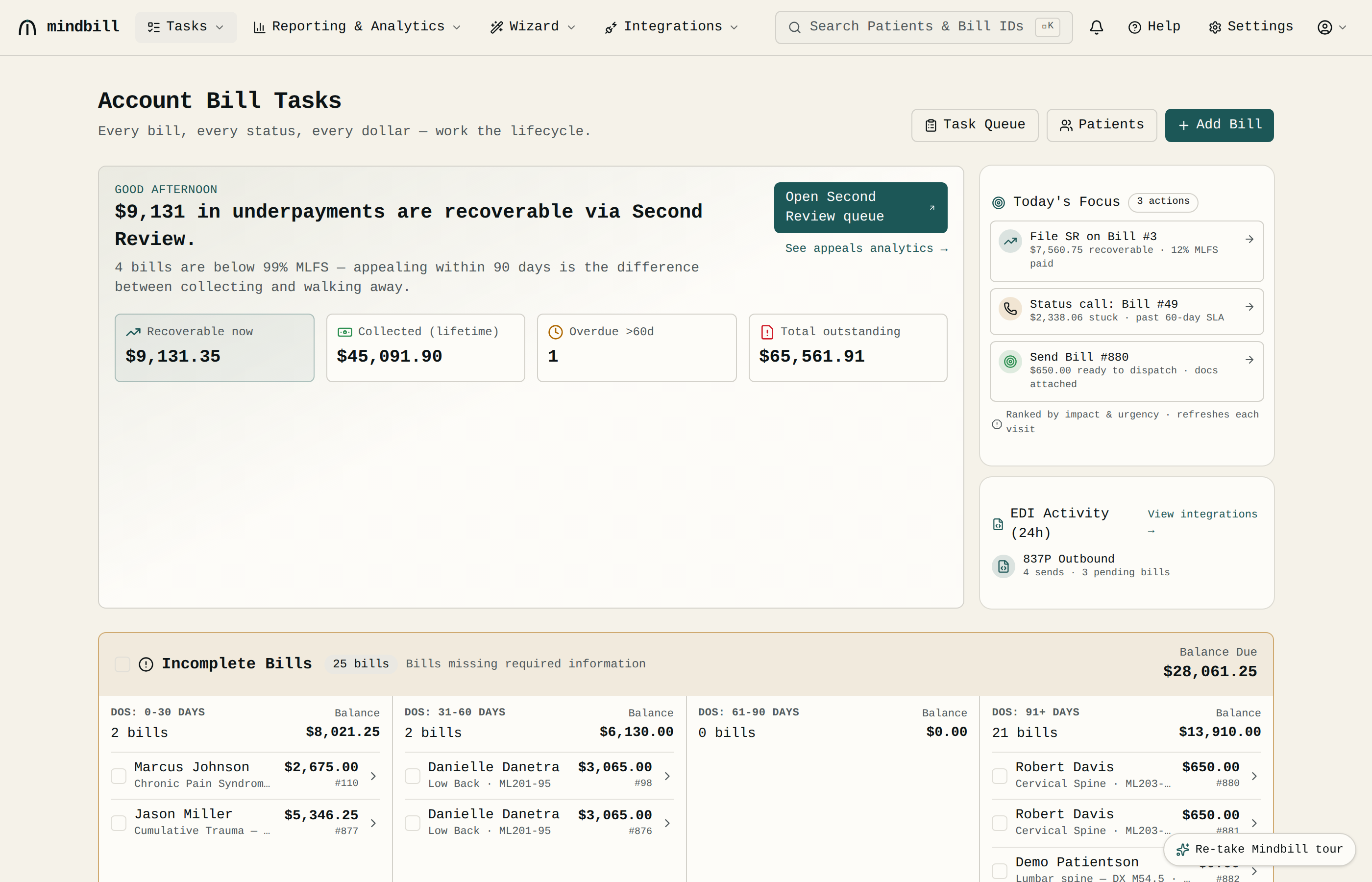
The home dashboard (Account Bill Tasks, at /tasks) opens to what needs attention now. A welcome banner headlines the dollars recoverable via Second Review — computed live from your own underpaid bills, not a fixed figure — and the count of bills below 99% MLFS still inside the 90-day appeal window, with a link straight into the Second Review queue. Quick actions sit up top (Task Queue, Patients, Add Bill), a Today's Focus widget surfaces the single highest-recoverable bill, and an EDI activity widget shows recent acknowledgments. It's the triage screen before you dive into any one bill.
Step 2 — Use the grouped top nav and breadcrumbs
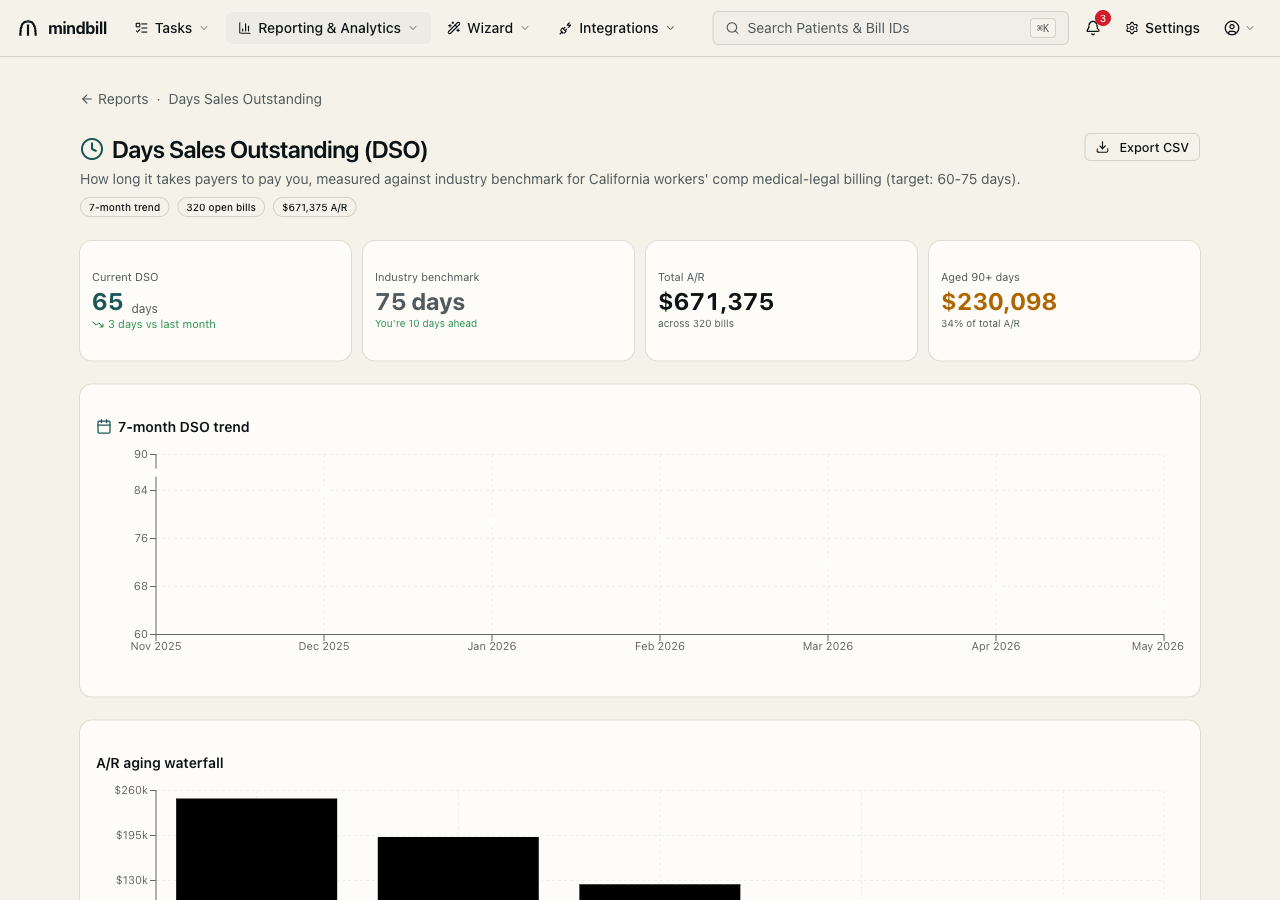
The top nav groups every surface under four menus — Tasks (bills, the board, the list), Reporting & Analytics (A/R, DSO, cash forecast, payment analytics), Wizard (the appeal and calculator generators), and Integrations (the Integrations Hub, the Claims Administrator Directory, and the EDI Sandbox). Help and Settings sit at the right end of the bar. Breadcrumbs at the top of each page show your trail (e.g. Reports · Days Sales Outstanding), so you always know where you are and can step back up a level in one click.
Step 3 — Jump anywhere with ⌘K
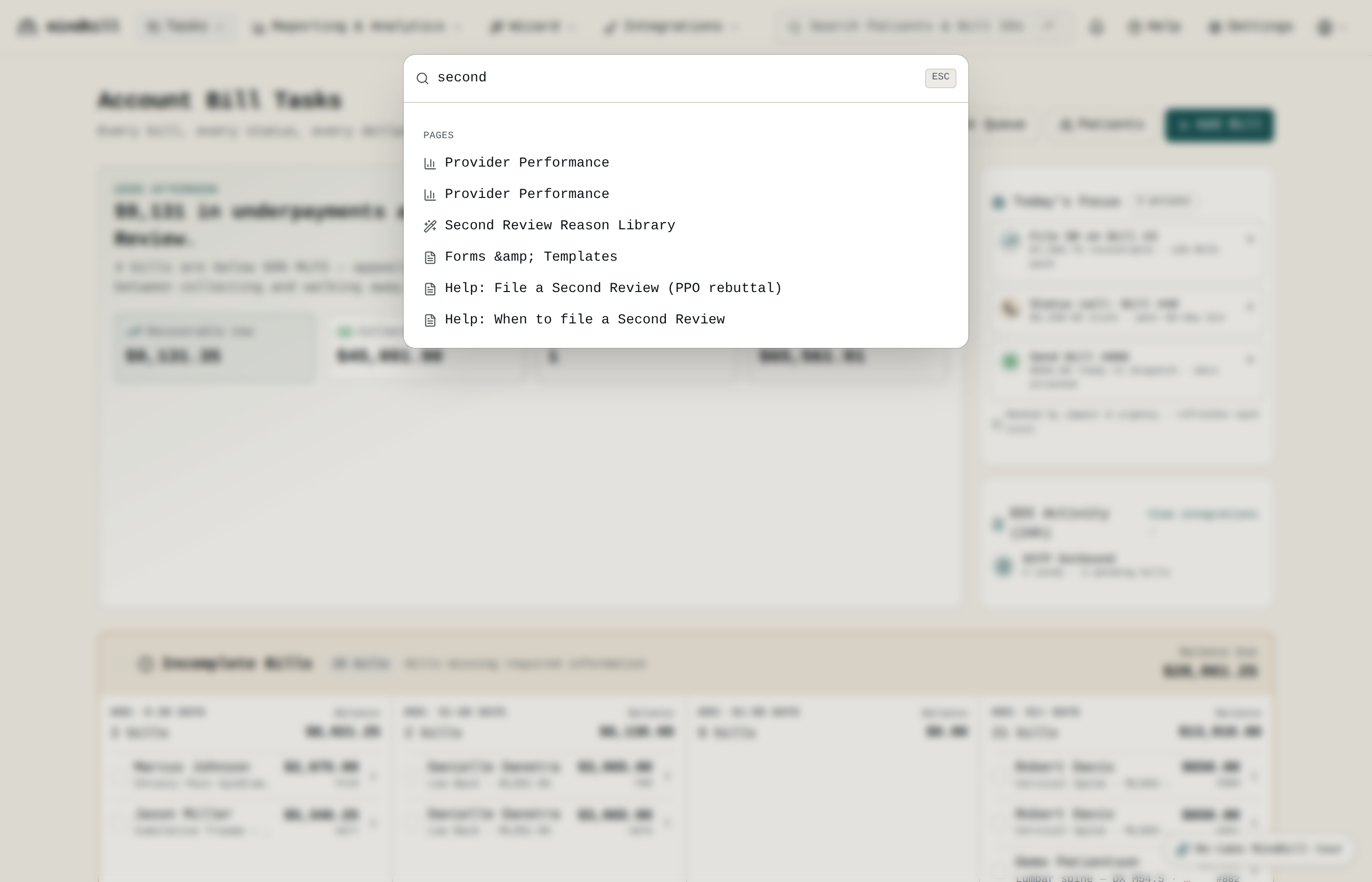
Press ⌘K (or click the search bar) to open the command palette. Start typing and it searches across everything at once — patients (by name or ID), bills (by number), payers, and pages. Type a patient's name and their record is one Enter away; type a bill number and you're on its detail page. It's the fastest path from anywhere to anything, no menu-hunting.